
Vault Max 1.1 · Available now
Three things to try in Vault Max 1.1.
You don’t need to learn a whole new app. Start with a front you’ll use, a small Desk setup or a better way to browse the files you already keep.

1. Give Desk one small job.
A quick morning glance is enough. Put a clock and a short checklist on Desk, and add Weather if you want it. You can rearrange the modules, change their sizes and choose how the screen looks. It is the front of Vault Max, so you can use it without opening your private library.
For your first setup, try a clock and one ordinary reminder such as “Charge camera.” Check it off once, then move the checklist above the clock if that feels easier to reach. There is no need to fill every available space.
See it in the app
A small reminder, then back to your photo.
- Add the ordinary reminder “Charge camera” to Desk.
- Mark it complete, then choose Options > Open unlock screen.
- Enter the vault code and open the sample photo.
Desk tasks are public before unlock. Keep private notes inside the vault. Desk tasks are not part of vault or device backups.
Download this recordingKeep the reminder harmless. Desk tasks are visible without your vault code, and they are not part of your vault or device backups. Your private notes belong inside the vault. Use the Desk walkthrough when you want the full arrangement steps.
2. Pick a front you would open anyway.
You may like Calculator. You may prefer a Clock you can leave on a table, or a Weather screen you check before going out. Version 1.1 offers eleven working covers, including Notes and Desk, and lets you try their ordinary controls before choosing one.
Start with one. A Clock needs very little setup. Weather lets you choose a city without allowing location access, and its fresh forecasts use Apple services. Notes is useful for a public reminder, while private notes stay behind your code.
When you want your collection, choose Options > Open unlock screen on the cover and unlock as usual. Practise that return once while you are setting it up. The cover chooser can help you decide where to start.
Changing the front or icon changes the appearance. It doesn’t make Vault Max disappear from Settings, App Library or your purchase history.
3. Browse in the way that suits the files.
A grid is useful when you remember a photo by how it looks. A list is easier when you are trying to find a particular document by name. You can switch between Gallery, Comfortable and List without making another copy of the collection.
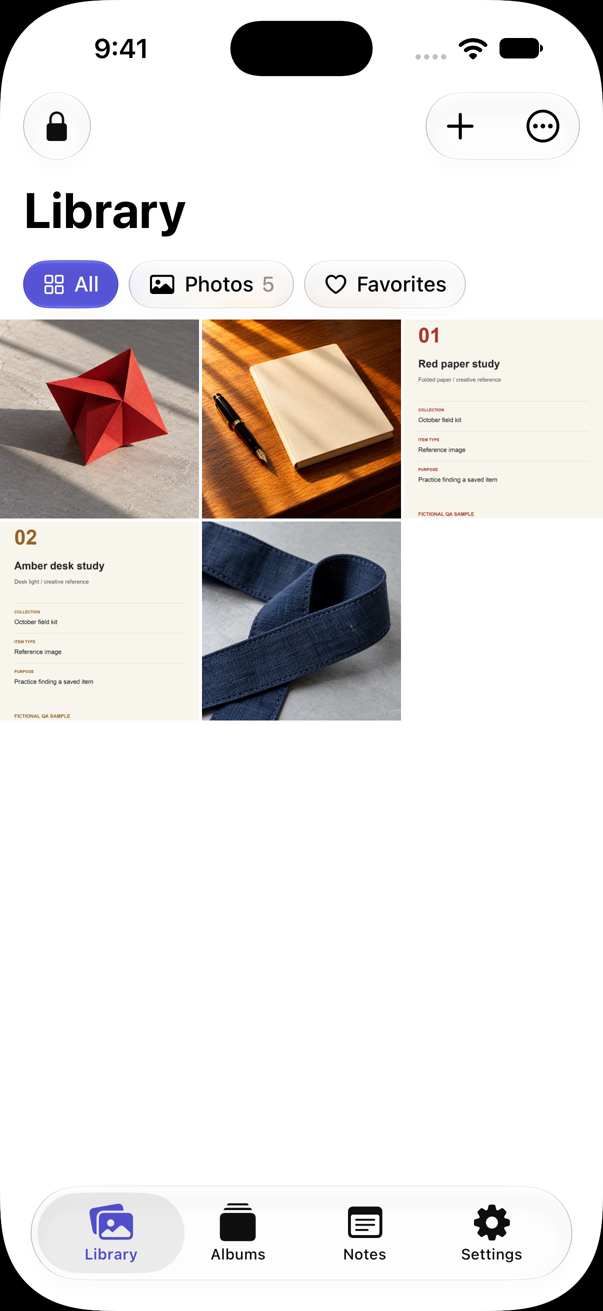
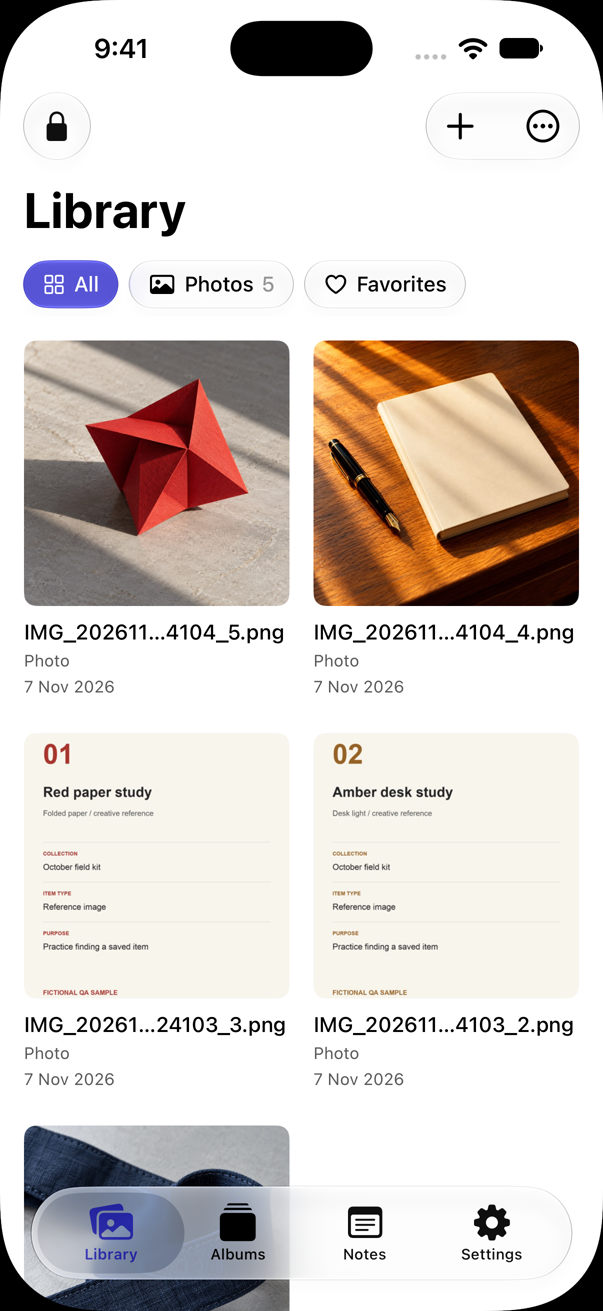
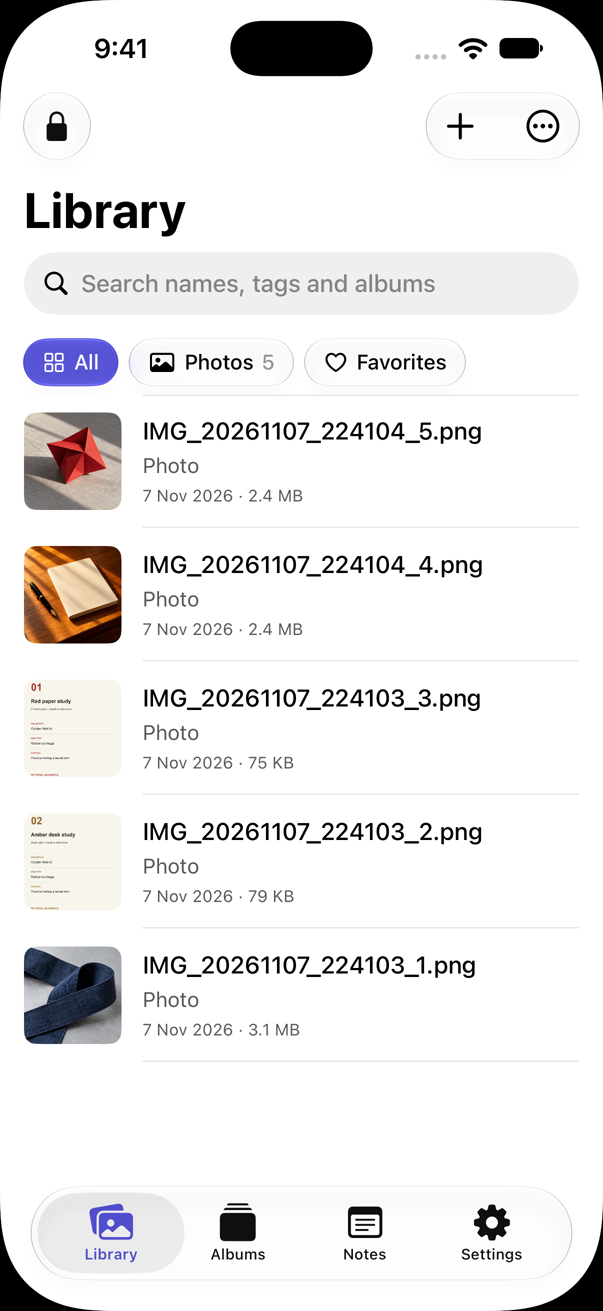
Try it with a few files you can recognize. Switch to each view, find the same item and open it. Keep the view that makes that job easiest. You can switch again when the collection changes.
If the collection is mostly photos, try Gallery first. If it mixes personal PDFs and pictures, try List before spending time renaming everything. The layout guide shows the same collection in all three views and how it uses iPhone Duo’s space.
Already using Vault Max? Start with one change.
The released update keeps the existing vaults, unlock methods and backup format. You don’t need to move the collection to a new app to try Desk or another view. Keep your normal backup routine, especially before making bigger changes to important files.
After unlocking, look for What’s New. You can revisit it from Settings if you dismissed it. Choose one part to try, then reopen a familiar file so you know your way back.
A purchase restore and a file restore solve different problems. Restoring a purchase brings back paid access associated with that purchase; it doesn’t recreate missing photos. Your encrypted backup is the separate copy that matters for recovering the collection. Read how local storage and backup fit together if that distinction has been confusing.
Starting today? One photo is enough.
You can try the app free with up to 50 photos, videos and documents per vault, plus one extra vault. Choose a code you can keep safe, import a harmless photo and leave its original in place while you learn the routine.
- Open the photo in the vault and check its detail.
- Lock the vault, reopen it and find the photo again.
- Try your preferred cover, then use Options to get back.
- Export the test photo and open the saved copy.
- Make an encrypted backup and keep its separate password safe.
The first-photo checklist turns that into a short plan. Keep the collection small until the steps feel ordinary. If a vault code is lost and there is no usable backup, we cannot recover the files for you.
If you need more room later, choose a subscription or the one-time Lifetime Unlock. You don’t need a subscription just to try the new front. The payment guide explains the choices and the current U.S. prices.
Vault Max 1.1 is available for iPhone and iPad running iOS or iPadOS 26 or later. See the public App Store listing for your device and region.
Start with the part you’ll use today.
Try one ordinary photo, one useful front and a view that makes it easy to find again.

iPhone and iPad · Free to start