
Switch layouts in the Library
- Open Library and tap the More menu.
- Tap Layout, then pick Gallery, Comfortable, or List. You can also open Settings → Library layout.
- Open the same photo in the layout you chose. The choice changes how the library is displayed.

Match the layout to the task
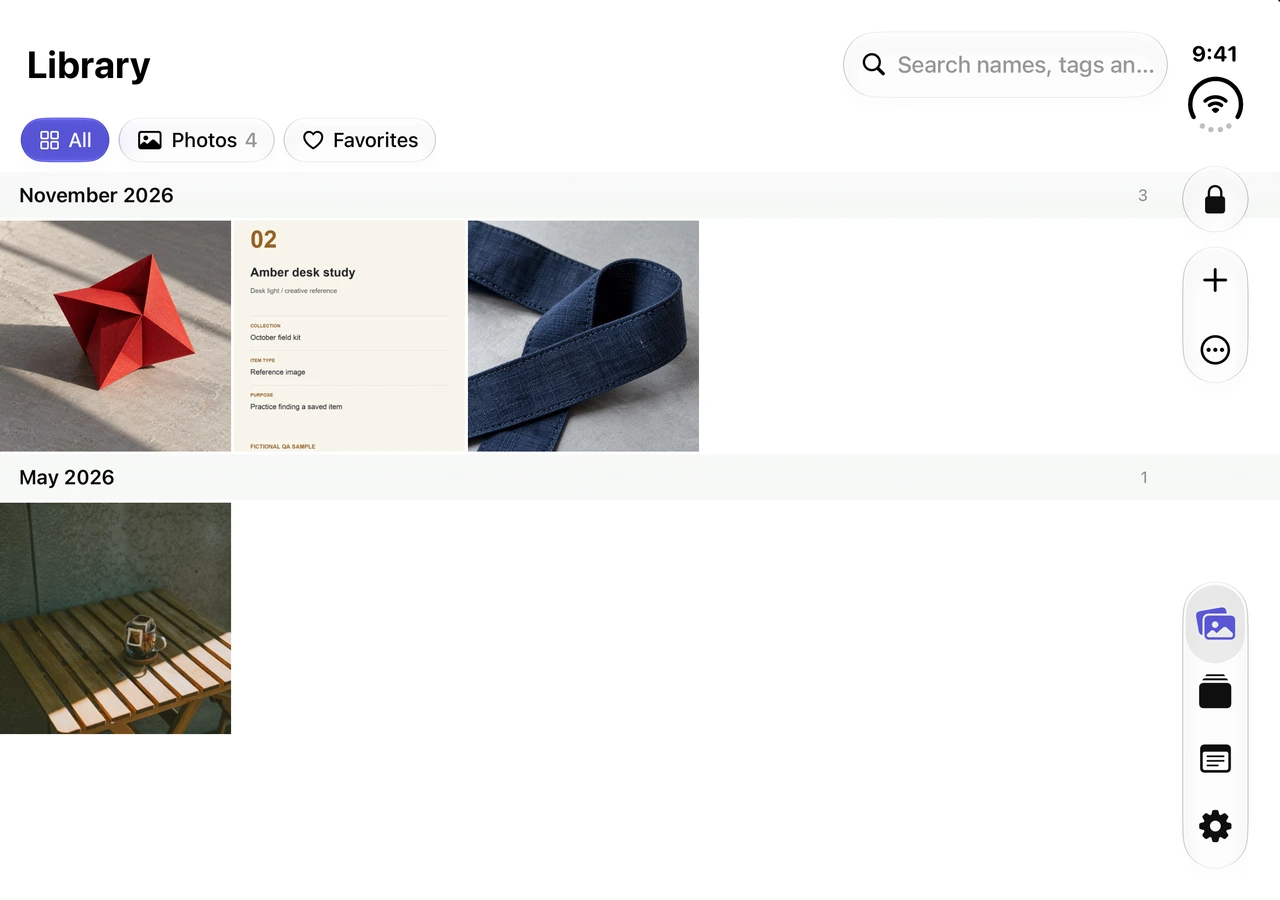
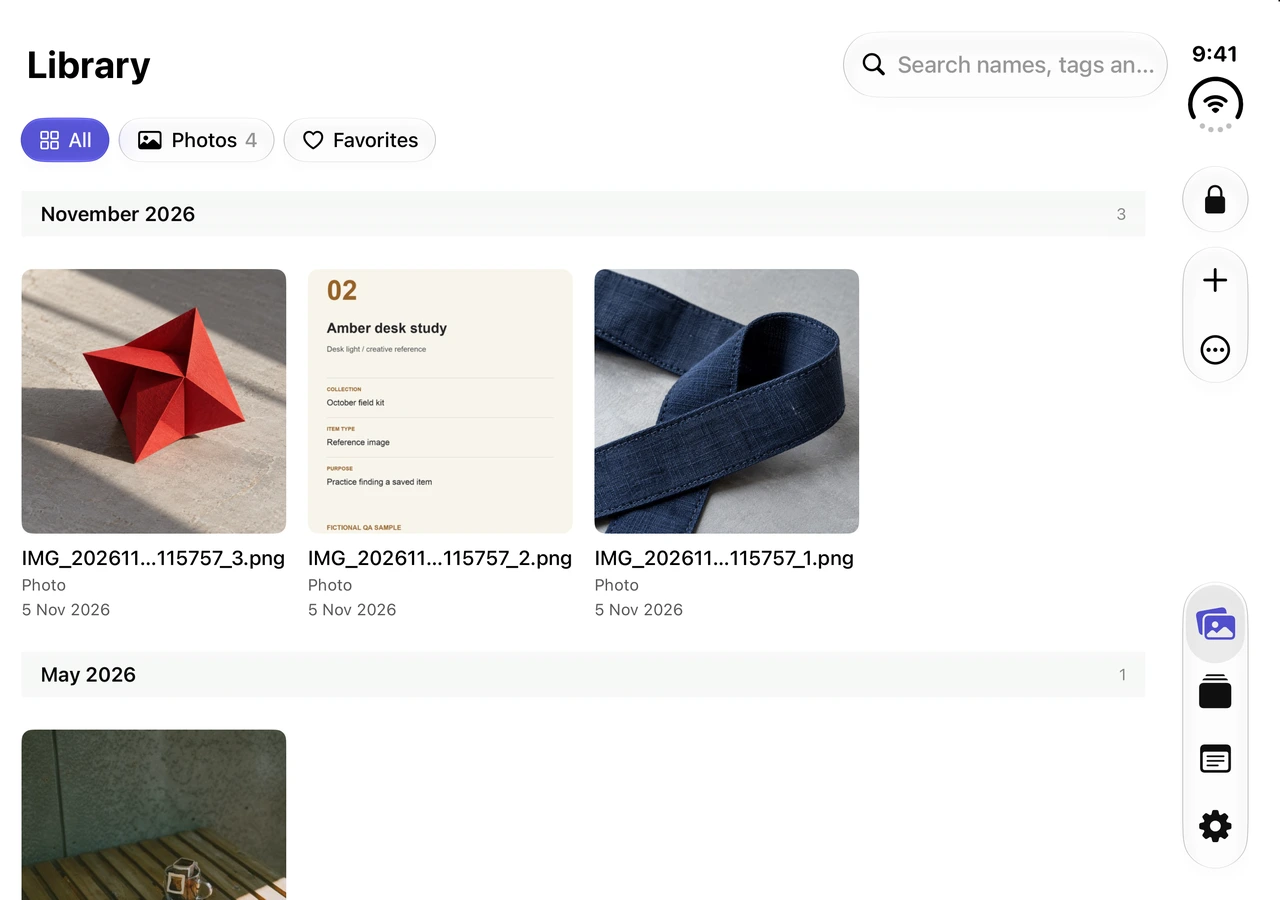
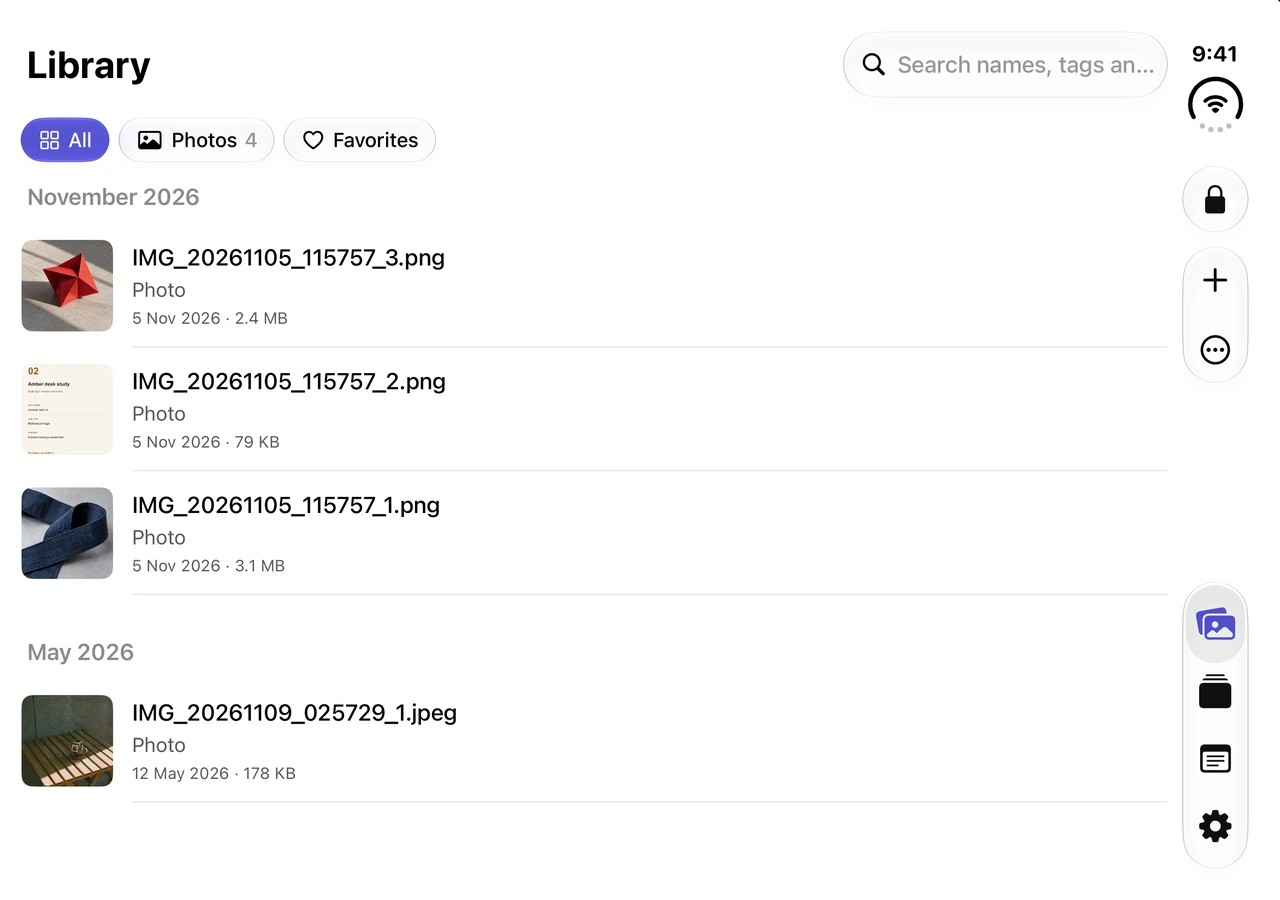
Find the item closed, then review it partially open
On the compact display, List gave us readable names and a thumbnail in each row. After opening a photo and moving the Duo simulator to its partially open posture, the viewer put the image on one side and the filmstrip and actions on the other. Select a thumbnail to change the photo. Use Info to check which item you opened or Share to prepare a copy.
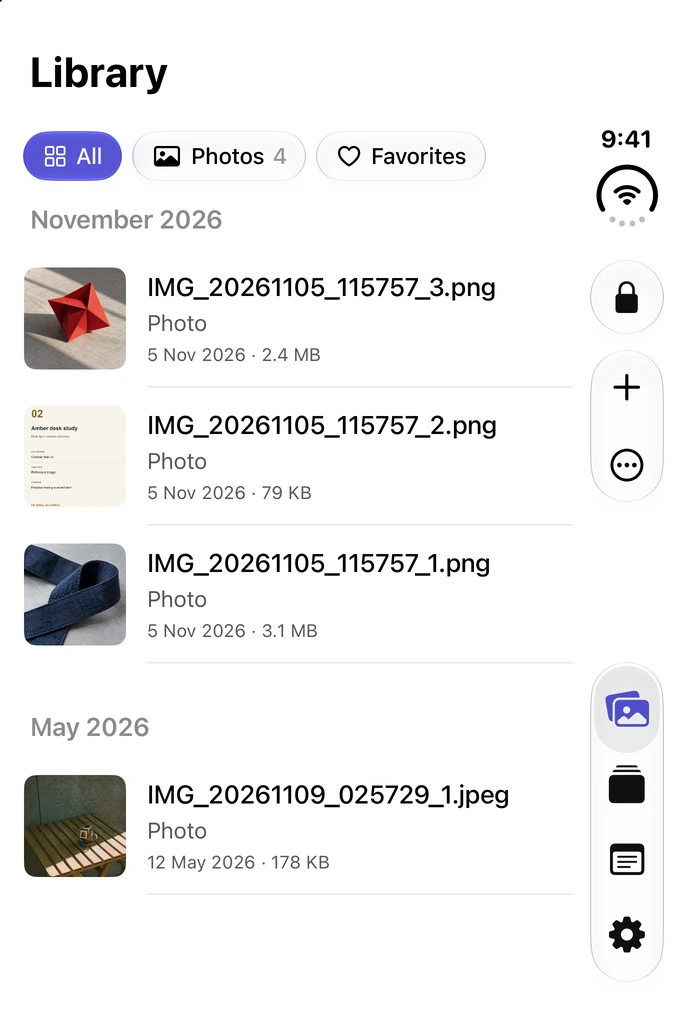
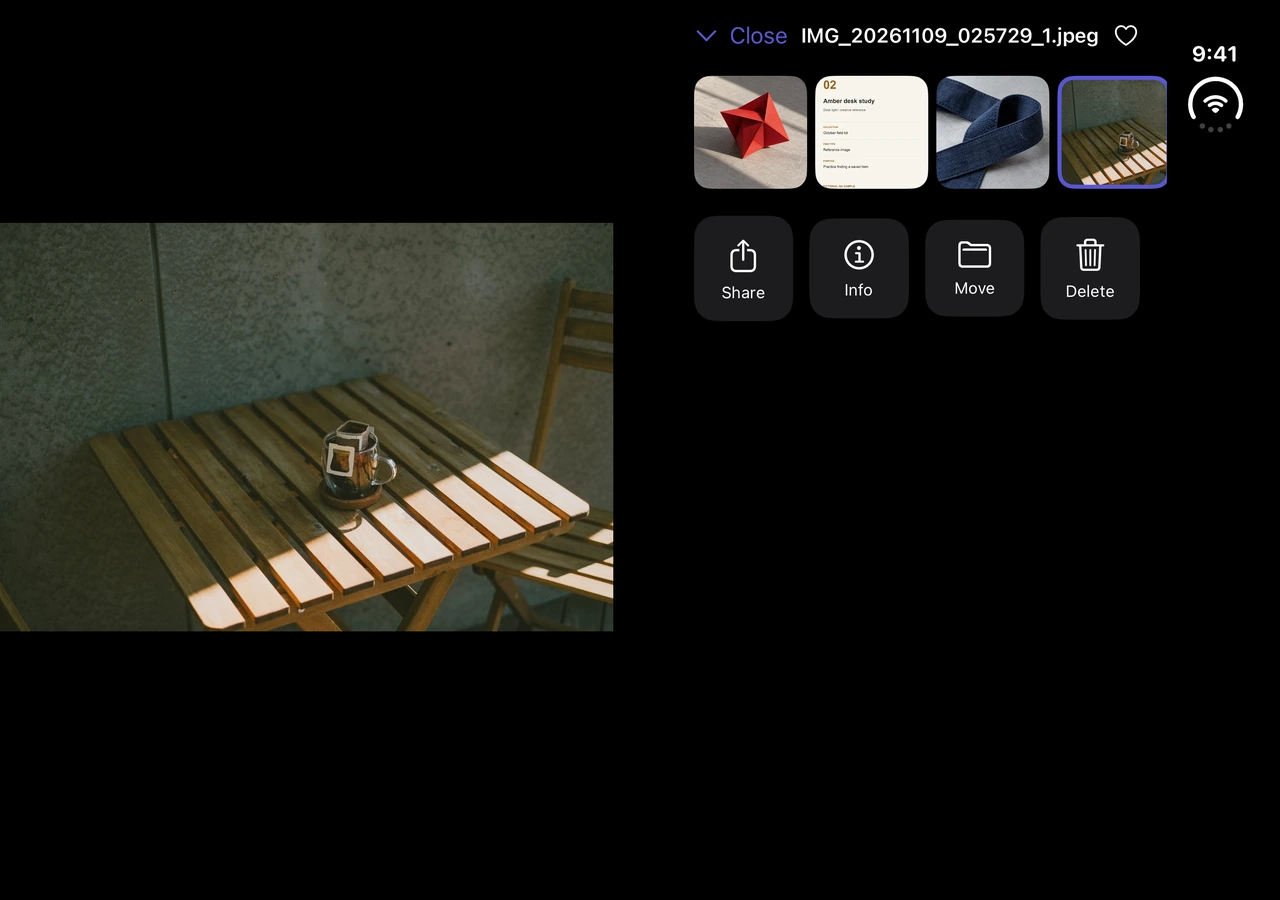
These postures were selected in Device Hub on an iPhone Duo simulator running iOS 27.1. For more on posture and the optional fold lock, see the Vault Max guide to iPhone Duo. If you are about to send a photo, try the saved-copy location test.