
Tested November 8, 2026 · Mad Max Labs · Fictional 640 × 400 image
The result
Removing two metadata segments made our JPEG 1,061 bytes smaller while preserving every decoded pixel. The ImageIO export was 10,649 bytes larger than the original and its decoded pixels differed, even though both outputs had the same dimensions and the checked GPS, camera model and date fields were absent.
| File | Fields found | Size and pixels |
|---|---|---|
| Original | GPS, camera model and recorded date | 27,615 bytes · baseline |
| Camera-only fixture | Camera model and recorded date | 26,910 bytes · identical decoded pixels |
| Segment-removal fixture | No GPS, camera model or recorded date found in the checked fields | 26,554 bytes · identical decoded pixels |
| ImageIO export | No GPS, camera model or recorded date found in the checked fields | 38,264 bytes · decoded pixels differed |
Download the exact files we checked
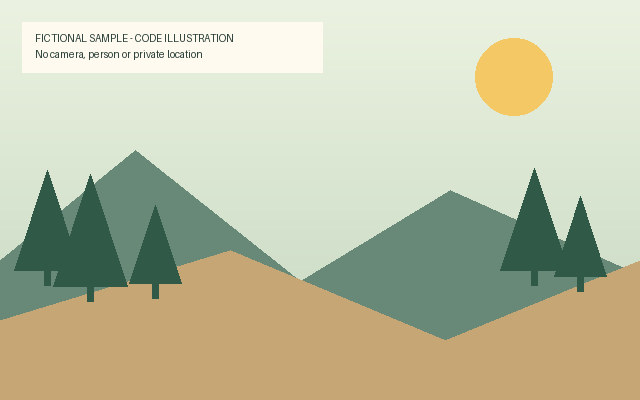
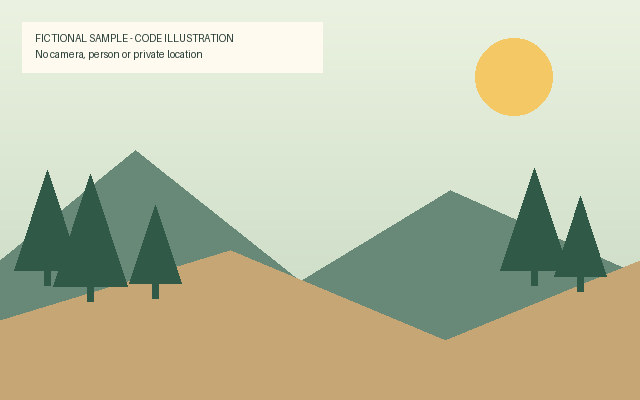
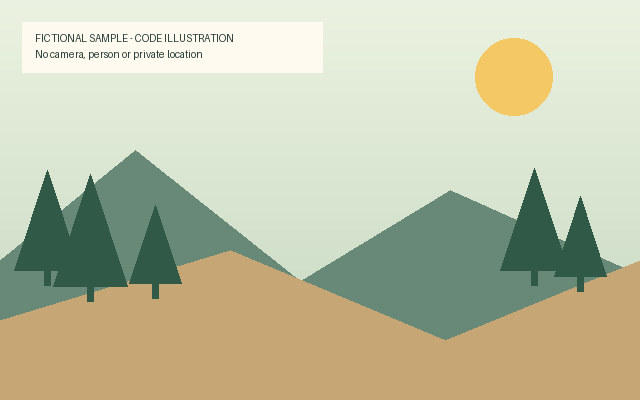
Each download shows the same fictional landscape with a sample label. The original has deliberately added camera, date and GPS fields.
- Original JPEG with fictional location
- Camera-only JPEG
- JPEG with the APP1 and APP13 segments removed
- ImageIO export of the original JPEG

Open the photo metadata inspector and choose the original. Select Compare a copy, then choose an output. Compare the location, device and date fields. Repeat with another output. The inspector compares readable metadata; our pixel comparison below used a separate decoder.
How we checked the files
We started with one authored JPEG. The camera-only fixture has the same compressed scan and a smaller metadata set. For the segment-removal fixture we removed APP1 and APP13 while preserving the scan bytes. We also ran the Vault Max photo export rewrite routine with the original JPEG on macOS 27.0 (26A425), using Apple ImageIO and its 0.95 JPEG compression quality setting. We saved and reopened the resulting file.
Pillow 11.3.0 read the dimensions and EXIF fields independently of the web inspector. We compared decoded RGB pixels and checked the JPEG scan bytes. The macOS run exercised the export routine. A Photos share, AirDrop transfer or messaging service may produce its own output and needs a check on that exact file.
Use the result when you prepare a photo
Save the outgoing copy first. Check its readable metadata and look at the actual image and filename. If you need unchanged image data, keep the source and verify pixel or encoded data separately. Equal dimensions alone cannot establish image equality.
Try the same comparison with two JPEGs exported to iPhone Files. For the iPhone steps, see how to remove photo location before sharing and how to convert HEIC and check the saved JPEG. If your result is partial, read how to interpret the location status.
Try the browser’s metadata removal on the same source
Download the original JPEG above. Open the browser metadata remover, choose that JPEG and select Remove metadata. The browser rebuilds the image and checks both files before offering the download.
In one Chromium test, the new 640 × 400 JPEG was 27,351 bytes, down from 27,615 bytes. A byte check found none of the source EXIF, XMP or Photoshop IPTC markers in the download. The browser uses a different encoder from ImageIO, so compare the output you get. The table above describes the four downloadable study files.
Compare two crops of this image
See two identical crops with different GPS results or look up the EXIF, IPTC, and XMP fields in the source JPEG.